


Project management, time tracking, equipment, and safety in one mobile tool built for construction companies.

CrewView web and mobile

Review and finish field work from your phone

Open the job on your phone, review the last form submission, and add missing signatures. With approvals enabled, supervisors can review crew time before payroll.

A worker holding a phone on a haul road at a jobsite
CrewView in the field
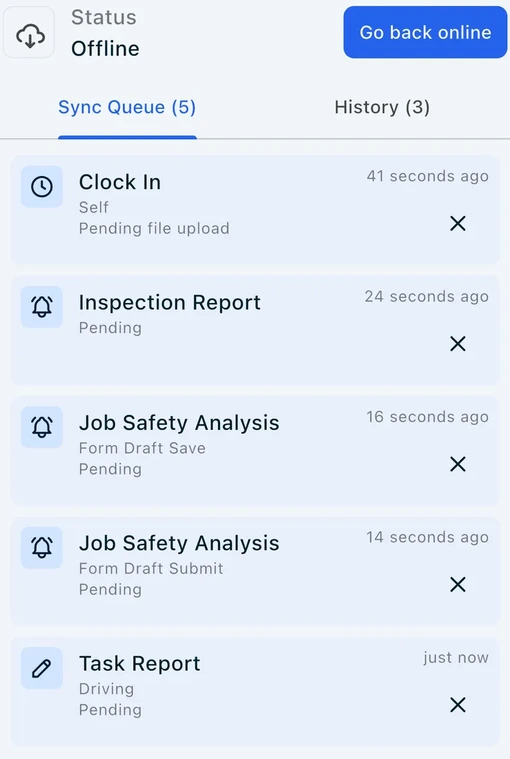
CrewView mobile Sync Queue showing pending clock-in, inspection, and Job Safety Analysis events while offline

Queue the form when the jobsite has no signal

A foreman completes a JSA underground. CrewView keeps the supported form submission in the mobile Sync Queue until it can send it. After the phone reconnects and the submission syncs successfully, the form appears in the project's Files tab under Forms for review. Check the queue if the submission is still pending.

A day on the jobsite

Complete the review from the field

The supervisor checks the synced JSA, collects a missing signature, and reviews the crew's time before heading to the next job.

Open a submitted form on your phone

Open the project, then go to Files and select Forms. Choose a previous submission to review its answers and signatures. If a team member or guest still needs to sign, users with edit access can add the signature to the same submission.

Approve or send back time from your phone

When time approvals are enabled, authorized supervisors can approve time on mobile. If an entry needs a correction, the supervisor can open the approval item on their phone and reject it with a reason. The submitter can respond for another review.

Open the work from a notification

An approval or follow-up alert in the CrewView Inbox, email, or SMS can open the item that needs attention. Delivery depends on the workflow and notification settings.

Send follow-up from a submitted form

With Form Actions configured on Pro, a submitted answer can create a to-do, email a PDF, or ask people clocked in on the project for signatures. The safety coordinator can open the assigned action from the notification.

Set up access and follow-up

Sign in with your work account

CrewView staff can configure enterprise OIDC or SAML single sign-on for web and mobile. To troubleshoot sync, authorized administrators can review when the app recorded a supported field event and when CrewView received it.

Explore security and access

Set which actions a form can trigger

On Pro, set up each Form Action by choosing the form, answer conditions, and recipients before the crew uses it.

Explore Form Actions

Enable supervisor approvals

Ask CrewView to enable time approvals and assign the people who can make approval decisions.

Explore the timecard review workflow

See why construction managers are switching to CrewView.