Project management, time tracking, equipment, and safety in one mobile tool built for construction companies.

Security and access

Manage sign-in and access across your divisions

Connect CrewView to your identity provider, give employees access to the work they handle, and review sign-in and app activity when an account needs attention.

Identity

Set up enterprise single sign-on

Contact CrewView to confirm availability and arrange setup with your IT team. CrewView configures the provider and domain for your organization.

Use your identity provider on web and mobile

CrewView staff work with your IT team to configure enterprise single sign-on for your email domain with OIDC or SAML. Employees enter their work email and continue to your identity provider from the web or mobile app.
Choose whether to create accounts at first sign-in

If first-login provisioning is enabled, an eligible employee can get a CrewView account when they sign in through your provider. If you prefer to set up accounts ahead of time, CrewView can configure sign-in for existing accounts only.

Authorization

Set access by responsibility and division

A contractor with separate civil and service divisions can give each project manager access to their division and tailor what that role can do.

Compare permissions across roles

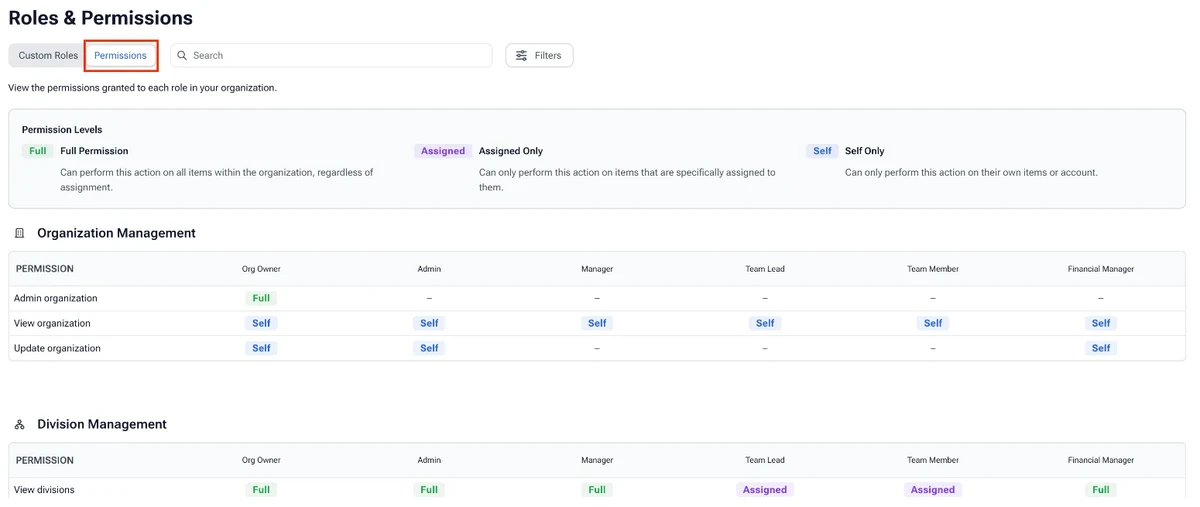
The organization owner can start with a base role and create a custom role for a job responsibility. In Roles & Permissions, compare whether each permission applies to all records in scope, assigned records, or the user's own records.

Give people access to the divisions where they work

An owner can give a project manager access to the division they oversee. CrewView uses both division access and the person's permissions to determine which records and actions they can use. Give someone access to another division when their work spans both.

CrewView Roles & Permissions comparison showing Full, Assigned, and Self access across roles

Mobile sessions and events

Review sessions and recorded app events

An authorized administrator can use session and event history to review when a field record arrived and which app installation recorded it.

Review app installations and sessions

Authorized administrators can review an employee's device and session history, including first and last activity and app information where available. Users can sign out of their other sessions from account settings.

Check where a mobile event came from

If a field action was saved offline and uploaded later, the event record can show when it was created, when CrewView received it, and the app installation it came from. That helps an administrator answer a question about a late record.

What the activity records show

Device and session history covers sign-ins, sessions, and supported CrewView events. It shows records at the time of an action, such as when the app recorded a field event and when it reached CrewView. GPS timecards capture location at clock-in and clock-out.

See why construction managers are switching to CrewView.